
Welcome to UBIK-info !
To connect on www.my-ubik.com
What is UBIK ?
Inspired by the word ubiquitous (to be everywhere at once),
UBIK it is a unique and personalized instant messaging
service, informing you, wherever you are, of events
related to your security system (arming and
disarming, when an alarm is triggered, etc.).
With UBIK, you will be informed of the comings and goings of your children, or other occupants, what time they go in or out, when an alarm is triggered and more!
Important notice to UBIK customers Version 1.0 Version française
Adding UBIK Service to your Address Book
In order to combat spam, many suppliers of Internet services have set up several filtering tools to transmit in your email box the legitimate e-mails only. Sometimes, these filtering systems can prevent you from receiving e-mails which should have been forwarded to you.
In order for you to receive your UBIK alarms messages, arms/disarms, as well as your open/close reports, please add the following address to your address book or to your security list: message@ubik-info.com.
Refer to your Internet Service Provider instructions by clicking on the appropriate link below:
If you receive your e-mails from your business server, please advise your IT systems manager so that he may add the following address, message@ubik-info.com, to the valid addresses list.
- AOL (VERSION 8.0)
- AOL (VERSION 9.0 OR OR HIGHER)
- BELL SYMPATICO
- EARTHLINK
- ENTOURAGE
- GMAIL
- MACMAIL
- HOTMAIL/MSN
- OUTLOOK (2003 AND OR HIGHER)
- OUTLOOK 2013
- OUTLOOK EXPRESS
- YAHOO!
- OTHER PROVIDERS
How to add the following address message@ubik-info.com to your address book:
Open your UBIK email message.
Click the Add Address icon on the right side of the window.
Check the sender information
Click the Save button.
How to add the following address message@ubik-info.com to your address book:
Open your UBIK email message.
Click the Add Address icon on the right side of the window.
Copy and paste the address message@ubik-info.com in the field "Other email"
Be sure to check the box "Principal Address"
Click the OK button.
How to add the following address message@ubik-info.com to your address book:
Open your UBIK email message.
Right-click on the email address.
Select "Add To Address Book" from the menu.
Check the email address.
Click Save.
How to add the following address message@ubik-info.com to your address book:
Open your UBIK email message.
In the From field, right-click the email address.
Click "Add to Address Book".
Click the "OK" button.
How to add the following address message@ubik-info.com to your address book:
Open your UBIK email message.
Right-click the email address.
Select "Add To Address Book" from the menu.
Verify the email address.
Click Save.
How to add the following address message@ubik-info.com to your address book:
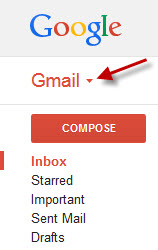
Click "Gmail" in the home page of Gmail when you are connected.
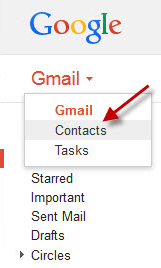
Click "Contacts".
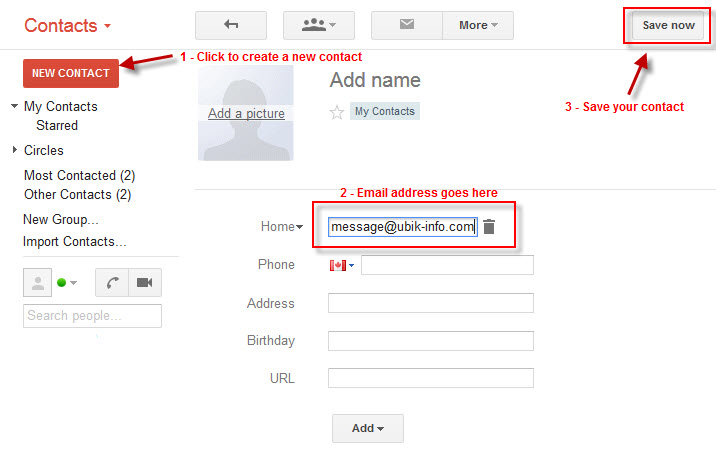
Click the "NEW CONTACT" button,
Copy (or register) the address message@ubik-info.com in the e-mail box.
Click the "Save Now" button.
How to add the following address message@ubik-info.com to your address book:
Open your UBIK email message.
Go to "Message" in the top tool bar.
Add Sender to Address Book from the drop down menu.
How to add the following address message@ubik-info.com to your address book:
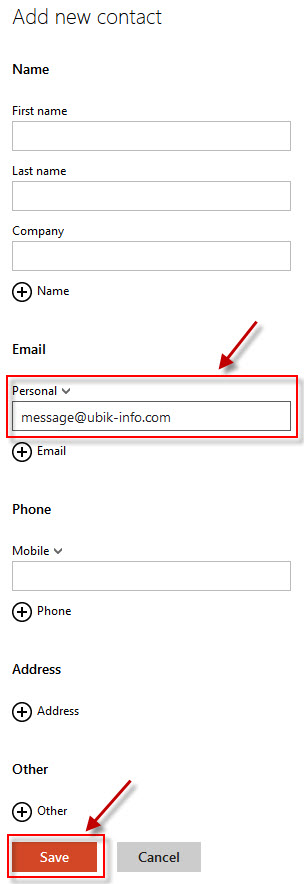
Open your mailbox and click on the icon with 9 squares (left top of the page).

You can access your contacts by clicking on the Contacts icon "People".
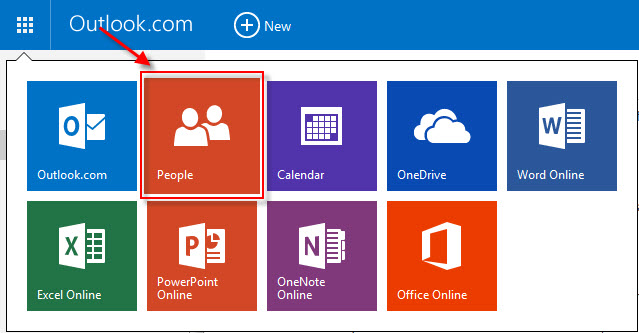
Click on "New" or on the + symbol surrounded.

In the "Inbox", enter the address message@ubik-info.com and click the "Save" button at the bottom of the form.
How to add the following address message@ubik-info.com to your address book:
Open your UBIK email message.
Go to the Actions options in the top tool bar.
Select Junk E-mail from the drop down menu.
Select the Add Sender to Safe Senders List option.
Click add and write message@ubik-info.com and OK
How to add the following address message@ubik-info.com to your address book:
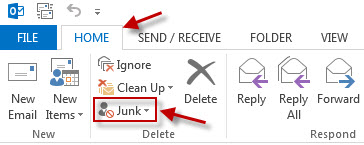
In the "Home" tab, click "Junk"
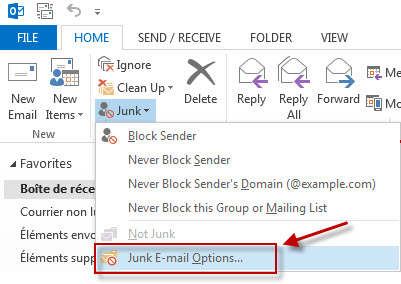
in the drop-down menu select "Junk E-mail Options ...".
In the "Safe Senders" tab, click on the option "Add".
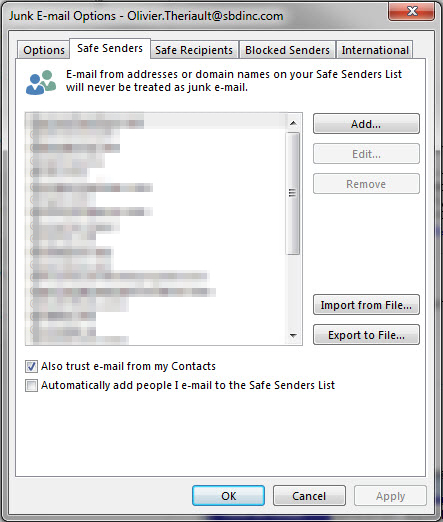
Enter the address message@ubik-info.com and Click "OK".
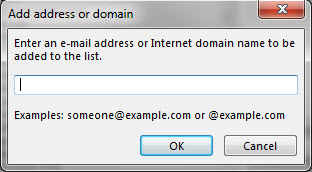
How to add the following address message@ubik-info.com to your address book:
Open your UBIK email message.
In the "From" field, right-click the email address.
Click the Add to Address Book link in the menu.
Click the OK button.
How to add the following address message@ubik-info.com to your address book:
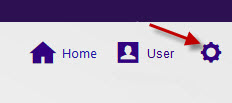
Open your Yahoo inbox and click the gear icon.
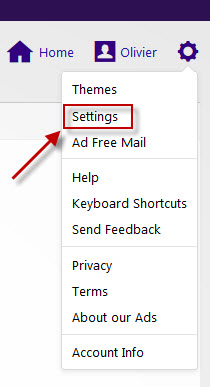
Click on "Settings".
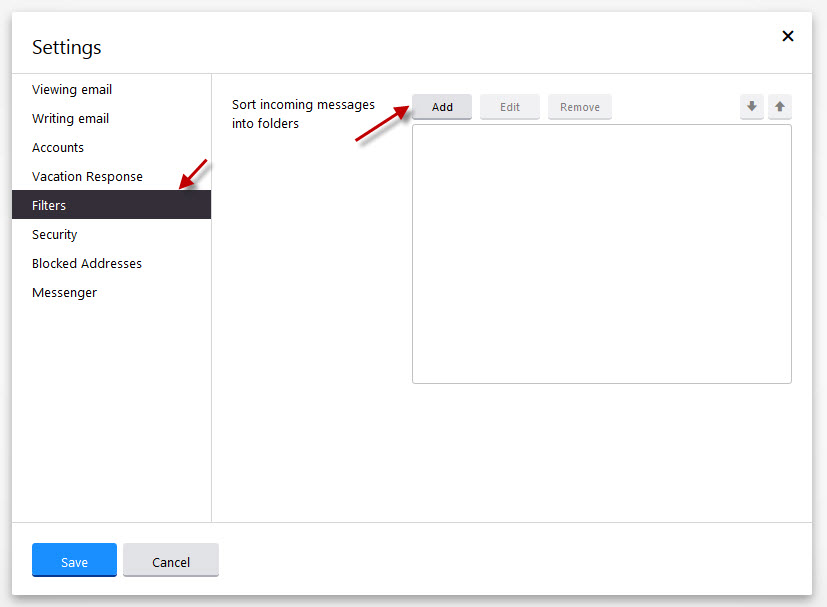
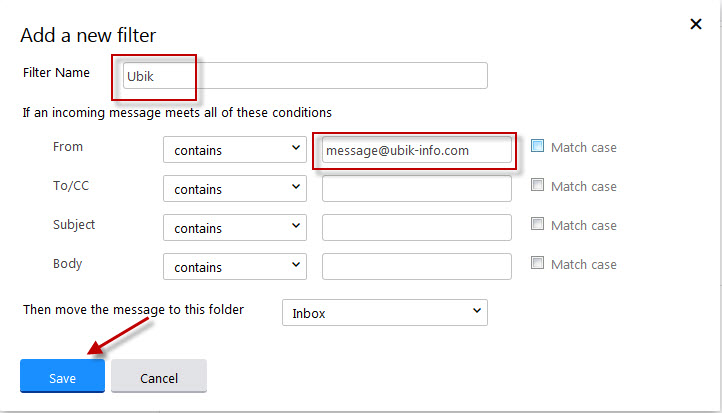
Select "Filters" and then click on the "Add" button.
Enter "UBIK" in the "Filter Name" field.
In the "From" field, register the adress message@ubik-info.com
Then, in the drop-down menu field "Then move the message to this folder" select "Inbox"
and click on the "Save" button.
If you use a Web mail system or an email application not listed above, contact our customer support.
In most cases, adding message@ubik-info.com to your address book should be enough.